

If you have ever installed a Kubernetes cluster from scratch, you already know the burden that comes with the process. You need to deploy the VMs, configure them, secure the cluster as much as possible and tune the OS so it behaves less like a general purpose machine and more like a reliable home for Kubernetes.
If it is true (and it usually is, right?) that most of us use IaC tools nowadays, I often wondered whether there was a Linux distribution specifically optimized for running Kubernetes workloads, something that could at least save some time and maybe prevent me from accidentally summoning the debugging gods at 2 AM.
The answer is yes: Talos , the self defined Kubernetes Operating System.
Talos is described as a Linux distribution built for running Kubernetes. It offers several interesting advantages. It is secure by design because it includes only the bare minimum needed to run Kubernetes, it is immutable and it embraces an infrastructure as code approach that makes cluster state predictable and versionable.
And here is a great bonus: Talos is a Certified Kubernetes distribution.
What really makes it different from traditional Linux distributions is that the OS is managed exclusively through an API. This means there is no SSH access and no package manager to tinker with. Every cluster upgrade, OS upgrade, node addition or removal and maintenance activity is performed using the Talos API.
Does it sound overcomplicated at first sight? Maybe 😅 but Talos provides a very convenient CLI named talosctl, which helps a lot with day to day node management.
Note
To avoid confusion, you should use the talosctl CLI to manage Talos nodes. Once the Kubernetes cluster is installed and configured, you could use kubectl to manage Kubernetes as usual.
Let’s try Talos
The Docker way
The easiest and fastest way to get started with Talos is to run it in Docker. The process is very similar to what I explained in this blog post .
Prerequisites
Before we start playing with Talos, make sure you have:
- Docker installed (see the official documentation )
- kubectl
- talosctl
To install the latest release of kubectl, run:
curl -LO "https://dl.k8s.io/release/$(curl -L -s https://dl.k8s.io/release/stable.txt)/bin/linux/amd64/kubectl"
chmod +x kubectl
mkdir -p ~/.local/bin
mv ./kubectl ~/.local/bin/kubectl
# and then append (or prepend) ~/.local/bin to $PATH
kubectl version --client # this tests if kubectl binary is workingTo install the latest release of talosctl, run:
curl -sL https://talos.dev/install | shAt the end, you should have docker, kubectl and talosctl available and working. Now we can begin.
Important
Make sure the kernel module br_netfilter is loaded. Without it, the cluster will not start in Docker. If it is missing, load it with:
sudo modprobe br_netfilterTo create a cluster, run:
talosctl cluster createThis command deploys a two node cluster with one control plane node and one worker. If you want to change the number of nodes, use the --workers and --masters options.
Be aware that this operation may take a few moments.
This is the expected output:
test@test:~$ talosctl cluster create
validating CIDR and reserving IPs
generating PKI and tokens
creating state directory in "/home/test/.talos/clusters/talos-default"
creating network talos-default
creating controlplane nodes
creating worker nodes
renamed talosconfig context "talos-default" -> "talos-default-1"
waiting for API
bootstrapping cluster
waiting for etcd to be healthy: OK
waiting for etcd members to be consistent across nodes: OK
waiting for etcd members to be control plane nodes: OK
waiting for apid to be ready: OK
waiting for all nodes memory sizes: OK
waiting for all nodes disk sizes: OK
waiting for no diagnostics: OK
waiting for kubelet to be healthy: OK
waiting for all nodes to finish boot sequence: OK
waiting for all k8s nodes to report: OK
waiting for all control plane static pods to be running: OK
waiting for all control plane components to be ready: OK
waiting for all k8s nodes to report ready: OK
waiting for kube-proxy to report ready: OK
waiting for coredns to report ready: OK
waiting for all k8s nodes to report schedulable: OK

merging kubeconfig into "/home/edivita/.kube/config"
PROVISIONER           docker
NAME                  talos-default
NETWORK NAME          talos-default
NETWORK CIDR          10.5.0.0/24
NETWORK GATEWAY       10.5.0.1
NETWORK MTU           1500
KUBERNETES ENDPOINT   https://127.0.0.1:43271

NODES:

NAME                            TYPE           IP         CPU    RAM      DISK
/talos-default-controlplane-1   controlplane   10.5.0.2   2.00   2.1 GB   -
/talos-default-worker-1 worker 10.5.0.3 2.00 2.1 GB -From the output we can highlight a few useful details:
- the newly generated kubeconfig has been merged into
~/.kube/config, so kubectl is ready - talosctl also has its context configured automatically via
~/.talos/config - node IP addresses are displayed
- the Kubernetes endpoint is shown as
https://127.0.0.1:43271
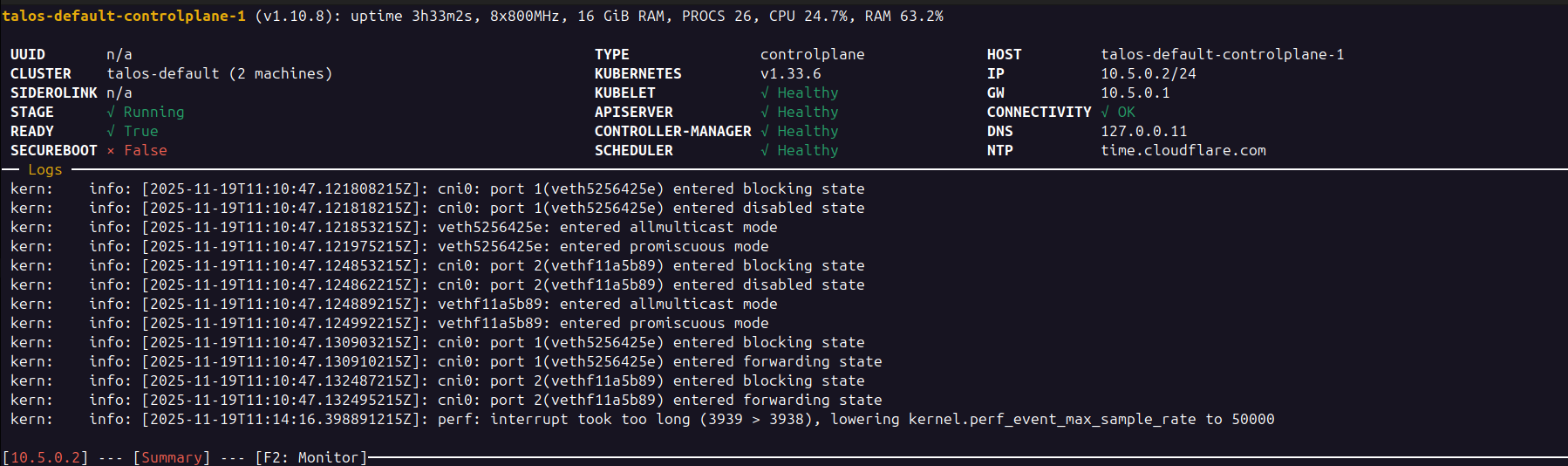
Now we can explore Talos, starting with its dashboard. The dashboard is read only and displays logs, OS status, Kubernetes version and the status of essential components for each node.
To access the dashboard of the control plane node:
talosctl dashboard --nodes 10.5.0.2You can repeat the same for any node.
Let us also verify that kubectl is working correctly:
test@test:~$ kubectl get nodes -o wide
NAME                           STATUS   ROLES           AGE   VERSION   INTERNAL-IP   EXTERNAL-IP   OS-IMAGE          KERNEL-VERSION      CONTAINER-RUNTIME
talos-default-controlplane-1   Ready    control-plane   30m   v1.33.6   10.5.0.2      <none>        Talos (v1.10.8)   6.14.0-35-generic   containerd://2.0.7
talos-default-worker-1 Ready <none> 30m v1.33.6 10.5.0.3 <none> Talos (v1.10.8) 6.14.0-35-generic containerd://2.0.7Everything looks good. Let us deploy a simple nginx workload to confirm that pods can start:
test@test:~$ kubectl create deployment frontend --image=nginxinc/nginx-unprivileged:trixie-perl --replicas=2
Warning: would violate PodSecurity "restricted:latest": allowPrivilegeEscalation != false [...]
deployment.apps/frontend created

test@test:~$ kubectl get po -o wide
NAME                        READY   STATUS    RESTARTS   AGE   IP           NODE                     NOMINATED NODE   READINESS GATES
frontend-74bf6897cc-r9kx4   1/1     Running   0          14m   10.244.1.6   talos-default-worker-1   <none>           <none>
frontend-74bf6897cc-xvcpg 1/1 Running 0 14m 10.244.1.7 talos-default-worker-1 <none> <none>Great, everything works.
Warning
The warning you see when creating the deployment is due to Pod Security Admission. More info here: https://docs.siderolabs.com/kubernetes-guides/security/pod-security
But let us be honest. Running Talos in Docker is fun, but it is not really where Talos shines. It does not feel too different from tools like kind . Talos is designed for VMs and bare metal.
So let us destroy the cluster:
talosctl cluster destroyTime to unleash the true Talos potential!
The VM way
Now we can properly test Talos in a realistic scenario by deploying a VM. If you prefer, you can install the ISO on bare metal as well.
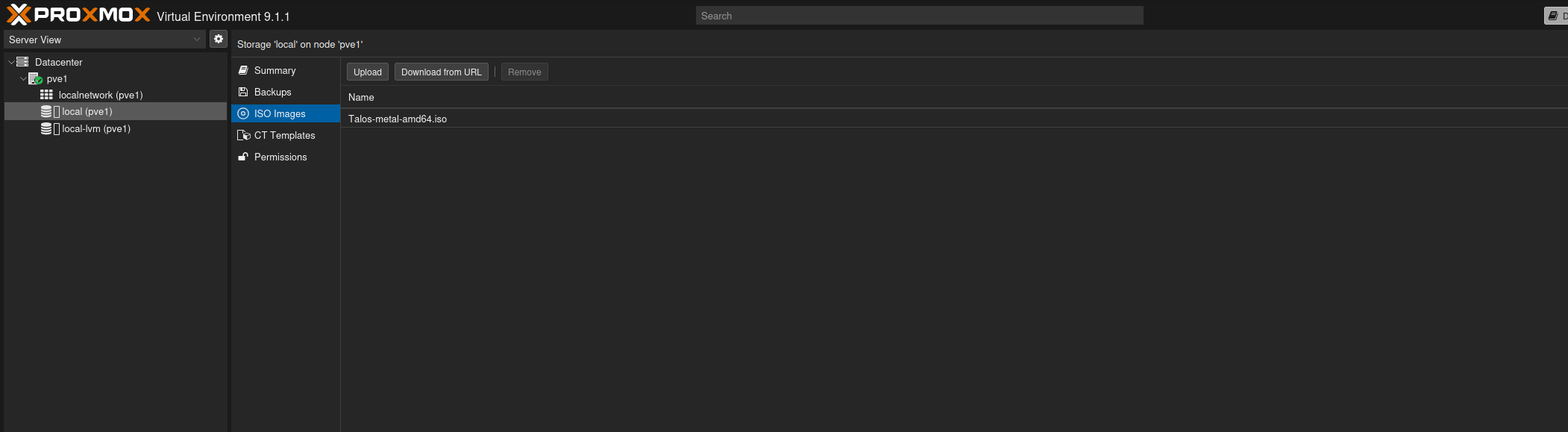
I downloaded the ISO onto my Proxmox server using this link:
You can check the latest supported versions here: https://docs.siderolabs.com/talos/v1.11/platform-specific-installations/virtualized-platforms/proxmox
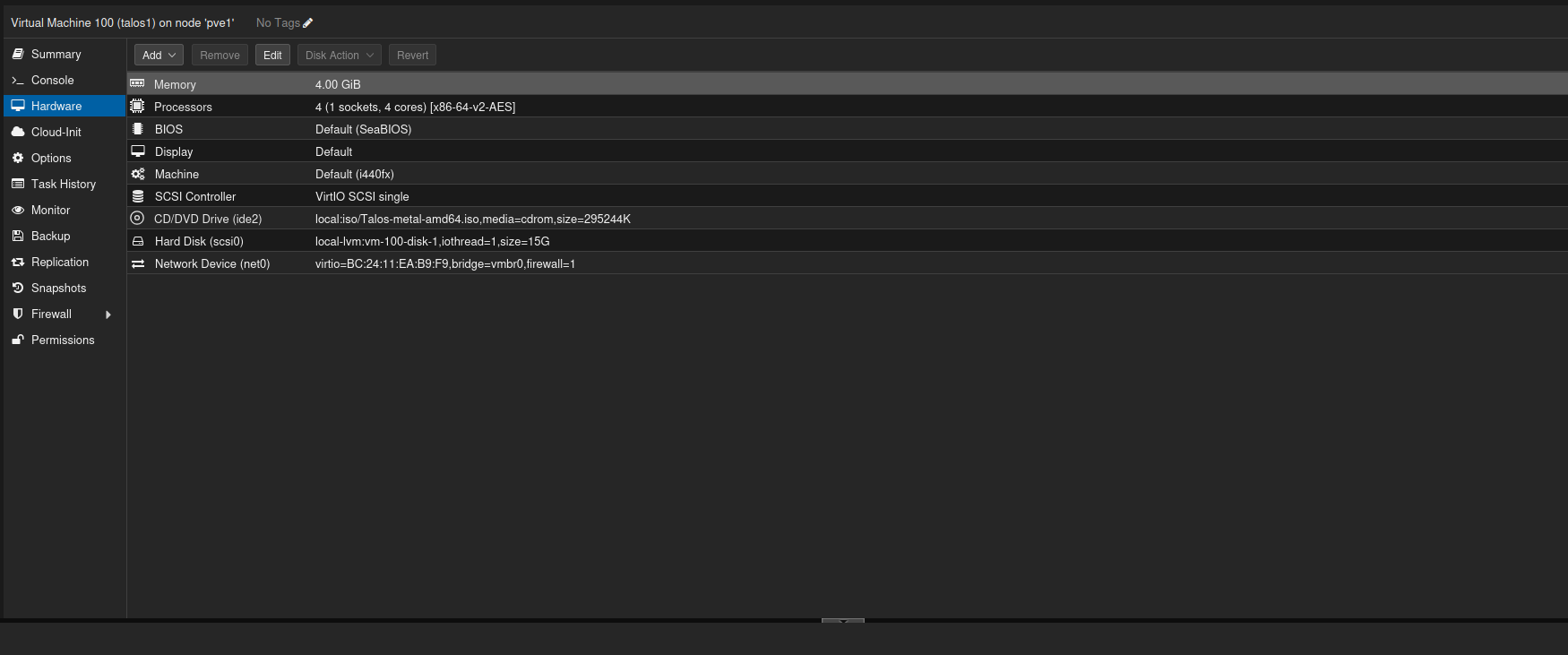
I created a VM with 4 GB RAM, 1 socket, 4 cores and 15 GB disk space.
When you start the VM, watch the console. The IP address will be printed automatically if DHCP is available.
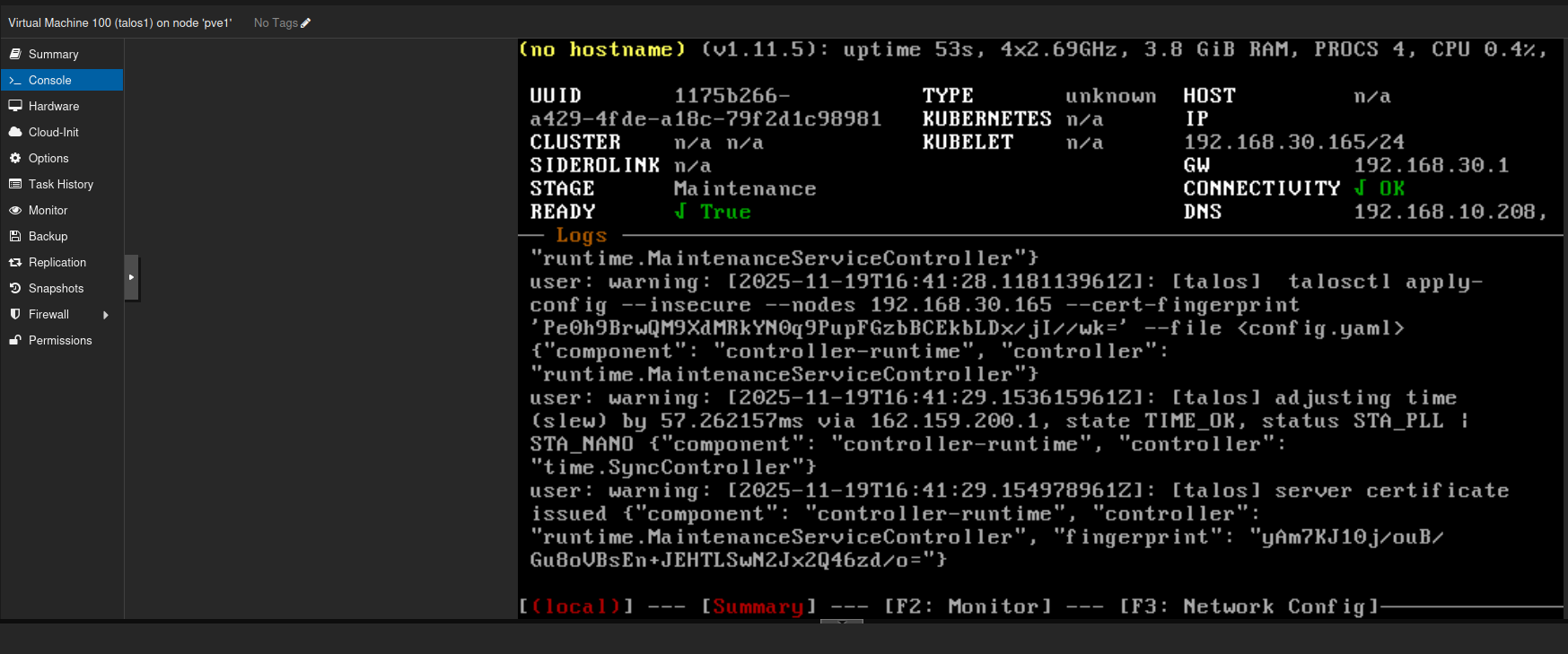
At this point Talos is running from the live ISO. Before using it, we need to install it on disk, which requires:
- generating the Talos configuration
- installing Talos using that configuration
- installing Kubernetes on the VM
Let us start with configuration.
Generate Talos configuration files
Using the IP address of the VM (in my case 192.168.30.165), run:
export CONTROL_PLANE_IP="192.168.30.165"
talosctl gen config talos-proxmox-cluster https://$CONTROL_PLANE_IP:6443 --output-dir talos_pxe_clusterThis generates three files: controlplane.yaml, worker.yaml and talosconfig. Since we have only one VM, we need only controlplane.yaml and talosconfig.
Install Talos
Before installing, verify what disk the VM uses so that Talos installs to the correct device:
talosctl get disks --insecure --nodes $CONTROL_PLANE_IPImportant
Talos uses mutual TLS for API communication. When running from the live ISO, the node uses self signed certificates - because it’s in maintenance mode - so we need the --insecure flag.
In my setup the disk is /dev/sda, which matches the default configuration in controlplane.yaml.
We can proceed with installation:
cp talos_pxe_cluster/talosconfig .talos/config
talosctl config endpoint $CONTROL_PLANE_IP
talosctl config node $CONTROL_PLANE_IP
talosctl apply-config --insecure --nodes $CONTROL_PLANE_IP --file talos_pxe_cluster/controlplane.yamlThere is no output, so watch the VM console. The VM will reboot automatically. Once it comes back online, check the dashboard:
talosctl dashboardAt some point you will see etcd listed as down. That is expected. When you see that, bootstrap the cluster:
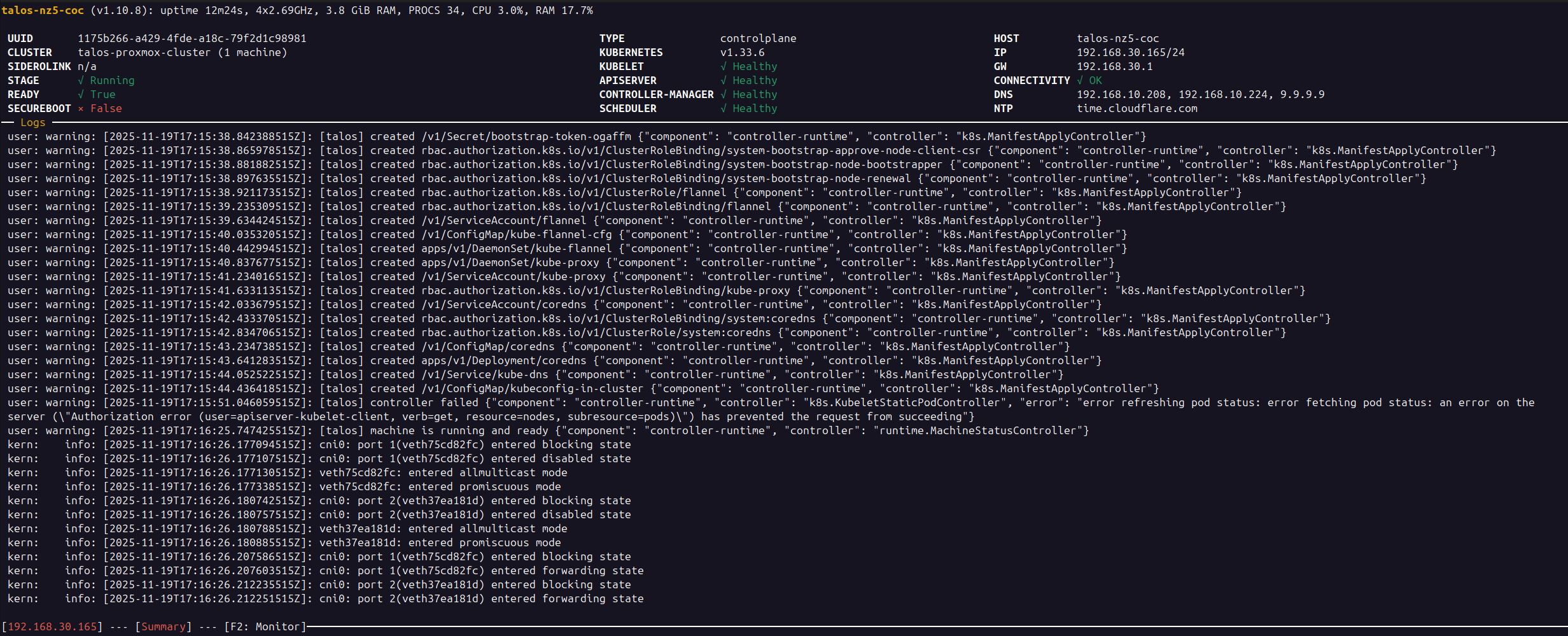
talosctl bootstrapMonitor the dashboard until the STAGE field shows Running and READY field is True, as shown in the image below:
Now talosctl is configured to target this node by default.
Next we need:
- a kubeconfig file
- the ability to schedule workloads on the control plane node
Generate kubeconfig file
This part is easy:
talosctl kubeconfig .kube/config_proxmox_clusterIf you manage multiple clusters, you can make kubectl load all kubeconfig files automatically:
export KUBECONFIG=$(find $HOME/.kube/config* -type f | tr '\n' ':')
echo $KUBECONFIGNow let us check our cluster:
test@test:~$ kubectl get nodes
NAME            STATUS   ROLES           AGE   VERSION
talos-nz5-coc   Ready    control-plane   16h   v1.33.6

test@test:~$ kubectl get po -A
NAMESPACE     NAME                                    READY   STATUS    RESTARTS      AGE
kube-system   coredns-78d87fb69b-mvtzd                1/1     Running   0             16h
kube-system   coredns-78d87fb69b-p2thg                1/1     Running   0             16h
kube-system   kube-apiserver-talos-nz5-coc            1/1     Running   0             16h
kube-system   kube-controller-manager-talos-nz5-coc   1/1     Running   2 (16h ago)   16h
kube-system   kube-flannel-v2275                      1/1     Running   0             16h
kube-system   kube-proxy-ljkr8                        1/1     Running   0             16h
kube-system kube-scheduler-talos-nz5-coc 1/1 Running 2 (16h ago) 16hNote
When managing multiple clusters, do not forget to set the appropriate cluster and context:
kubectl config set-cluster talos-proxmox-cluster
kubectl config use-context admin@talos-proxmox-clusterAllow workload on control plane node
You can do this with kubectl:
kubectl taint nodes <node-name> node-role.kubernetes.io/control-plane:NoSchedule-Or you can do it the Talos way. Talos gives two options:
- use
talosctl edit machineconfig -n <IP>to apply changes interactively - create a patch file and apply it with
talosctl patch machineconfig --patch-file <file>
For simplicity I used the interactive editor:
talosctl edit machineconfig -n $CONTROL_PLANE_IPFind and enable:
# # Allows running workload on control-plane nodes.
allowSchedulingOnControlPlanes: trueSave and close the editor. Talos will apply the changes immediately:
$ talosctl edit machineconfig -n $CONTROL_PLANE_IP
Applied configuration without a rebootNow deploy a test workload:
kubectl create deployment frontend --image=nginxinc/nginx-unprivileged:trixie-perl --replicas=2And check:
kubectl get po -o widePerfect. At this stage we have a fully functional Talos VM running Kubernetes.
But I know you want more. So let us go deeper.
A more realistic scenario
In a real production environment, control plane and worker nodes are separate and control plane nodes do not run regular workloads. In this was I just decided to deploy 3 VMs, but they will be all control planes.
Here is the plan:
- deploy three Talos VMs in Proxmox
- allow scheduling on all nodes
- install Cilium as the CNI and replace kube-proxy
- configure a custom DNS server
- configure custom NTP servers
- install a CSI solution, in this case Longhorn
If you need guidance on VM setup, refer to the previous section . This time each VM should have two disks of 10 GB each. One for Talos and one for Longhorn.
Once the VMs are powered on and running the Talos ISO, we can proceed.
Create patch files
Create a directory:
mkdir talos-infra
cd talos-infraCilium preparation patch
Name the file patch-cilium.yaml:
cluster:
  network:
    cni:
      name: none
  proxy:
disabled: trueIf you want to customize pod or service CIDRs, you can extend it:
cluster:
  network:
    cni:
      name: none
  proxy:
    disabled: true
  podSubnets:
      - 10.244.0.0/16
  serviceSubnets:
- 10.96.0.0/12DNS patch
patch-dns.yaml:
machine:
  network:
    nameservers:
      - 9.9.9.9
- 1.1.1.1NTP patch
patch-ntp.yaml:
machine:
  time:
    servers:
      - 0.it.pool.ntp.org
      - 1.it.pool.ntp.org
- 2.it.pool.ntp.orgAllow workload on control plane
patch-allow-workflow-on-master.yaml:
cluster:
allowSchedulingOnControlPlanes: trueLonghorn dependencies patch
Create schematic.yaml:
customization:
  systemExtensions:
    officialExtensions:
      - siderolabs/iscsi-tools
- siderolabs/util-linux-toolsCreate userVolumeConfig.yaml:
apiVersion: v1alpha1
kind: UserVolumeConfig
name: longhorn
provisioning:
  diskSelector:
    match: disk.size > 10u * GiB
  grow: false
minSize: 5GBCreate patch-longhorn-extramount.yaml:
machine:
  kubelet:
    extraMounts:
      - destination: /var/mnt/longhorn
        type: bind
        source: /var/mnt/longhorn
        options:
          - bind
          - rshared
- rwNetwork patches
We need three network patches, one for each node. Each node will receive a static IP and they will share a VIP.
I decided to reserve 4 IP addresses in my homlab which I will dedicate to:
- 1 IP for node 1, talos1. IP:
192.168.30.165 - 1 IP for node 2, talos2. IP:
192.168.30.166 - 1 IP for node 2, talos2. IP:
192.168.30.167 - 1 IP for the shared VIP. IP:
192.168.30.168
patch-talos1-network.yaml:
machine:
  network:
    hostname: talos1
    interfaces:
      - interface: ens18
        dhcp: false
        addresses:
          - 192.168.30.165/24
        routes:
          - network: 0.0.0.0/0
            gateway: 192.168.30.1
        vip:
ip: 192.168.30.168patch-talos2-network.yaml:
machine:
  network:
    hostname: talos2
    interfaces:
      - interface: ens18
        dhcp: false
        addresses:
          - 192.168.30.166/24
        routes:
          - network: 0.0.0.0/0
            gateway: 192.168.30.1
        vip:
ip: 192.168.30.168patch-talos3-network.yaml:
machine:
  network:
    hostname: talos3
    interfaces:
      - interface: ens18
        dhcp: false
        addresses:
          - 192.168.30.167/24
        routes:
          - network: 0.0.0.0/0
            gateway: 192.168.30.1
        vip:
ip: 192.168.30.168Install the VMs
Power on the VMs and take note of the temporary DHCP assigned IPs. You will use these to apply the configuration.
Check the disk layout:
export NODE1_TMP_IP="192.168.30.140" # assigned by DHCP
export NODE2_TMP_IP="192.168.30.155" # assigned by DHCP
export NODE3_TMP_IP="192.168.30.212" # assigned by DHCP

talosctl get disks --insecure --nodes $NODE1_TMP_IP
talosctl get disks --insecure --nodes $NODE2_TMP_IP
talosctl get disks --insecure --nodes $NODE3_TMP_IPMake sure the disk names match what you expect for Talos installation and Longhorn.
Generate the final config file
Export required variables:
export CLUSTER_NAME="proxmox-talos-cluster1"
export TALOS_VERSION="v1.10.8"

# these are the IPs we want to give to the VMs at the end
export NODE1_IP="192.168.30.165"
export NODE2_IP="192.168.30.166"
export NODE3_IP="192.168.30.167"
export K8S_VIP="192.168.30.168"At this point we need to talk about a file we created in the previous step: the schematic.yaml. Schematics in Talos act as an extension mechanism that allows you to add additional system tools to the Talos installation image. Since Talos nodes are immutable and do not include a package manager, schematics provide the supported way to bundle extra utilities into the OS at build time.
After creating the schematic.yaml file, you must upload it to the Talos Image Factory service. The factory processes the schematic and returns a unique image ID. You will then pass this ID to the configuration generation commands through a dedicated flag, so Talos can build and install a custom installer image that includes the extensions you defined.
Upload the schematic:
IMAGE_ID=$(curl -X POST --data-binary @schematic.yaml https://factory.talos.dev/schematics | jq -r ".id")Generate the base Talos config:
talosctl gen config $CLUSTER_NAME https://$K8S_VIP:6443 \
  --install-disk /dev/sda \
  --config-patch @patch-allow-workflow-on-master.yaml \
  --config-patch @patch-cilium.yaml \
  --config-patch @patch-dns.yaml \
  --config-patch @patch-longhorn-extramount.yaml \
  --config-patch @patch-ntp.yaml \
  --talos-version $TALOS_VERSION \
  --install-image factory.talos.dev/installer/$IMAGE_ID:$TALOS_VERSION \
--output output_filesCreate per node config files:
talosctl machineconfig patch output_files/controlplane.yaml \
  --patch @patch-talos1-network.yaml \
  --output output_files/talos1.yaml

talosctl machineconfig patch output_files/controlplane.yaml \
  --patch @patch-talos2-network.yaml \
  --output output_files/talos2.yaml

talosctl machineconfig patch output_files/controlplane.yaml \
  --patch @patch-talos3-network.yaml \
--output output_files/talos3.yamlApply the configuration:
talosctl apply-config --insecure --nodes $NODE1_TMP_IP -f output_files/talos1.yaml
talosctl apply-config --insecure --nodes $NODE2_TMP_IP -f output_files/talos2.yaml
talosctl apply-config --insecure --nodes $NODE3_TMP_IP -f output_files/talos3.yamlWatch the VM consoles until they complete installation and reboot. When the first node reaches the point where you see a message like this:
[...] service "etcd" to be "up"this means we are ready to bootstrap the node:
cp output_files/talosconfig ~/.talos/config
talosctl bootstrap -n $NODE1_IP -e $NODE1_IPImportant
Bootstrap must be executed only on the first node.
Check the dashboard:
talosctl dashboard -n $NODE1_IP -e $NODE1_IPNow generate a kubeconfig:
talosctl kubeconfig ~/.kube/config -n $NODE1_IP -e $NODE1_IP
kubectl get nodesThe nodes will appear as NotReady because no CNI is installed yet.
Install Cilium
You need helm installed. See: https://helm.sh/docs/intro/install/
Then:
helm repo add cilium https://helm.cilium.io/
helm repo update
helm install \
    cilium \
    cilium/cilium \
    --version 1.18.4 \
    --namespace kube-system \
    --set ipam.mode=kubernetes \
    --set kubeProxyReplacement=true \
    --set securityContext.capabilities.ciliumAgent="{CHOWN,KILL,NET_ADMIN,NET_RAW,IPC_LOCK,SYS_ADMIN,SYS_RESOURCE,DAC_OVERRIDE,FOWNER,SETGID,SETUID}" \
    --set securityContext.capabilities.cleanCiliumState="{NET_ADMIN,SYS_ADMIN,SYS_RESOURCE}" \
    --set cgroup.autoMount.enabled=false \
    --set cgroup.hostRoot=/sys/fs/cgroup \
    --set gatewayAPI.enabled=true \
    --set gatewayAPI.enableAlpn=true \
    --set gatewayAPI.enableAppProtocol=true \
    --set k8sServiceHost=localhost \
--set k8sServicePort=7445Wait until all pods become ready:
kubectl get po -A -wConfigure talosctl with VIP and node list:
talosctl config endpoint $K8S_VIP
talosctl config nodes $NODE1_IP $NODE2_IP $NODE3_IPNow you can fully administer the cluster using talosctl. Check the reference doc for the tool to know more.
Install Longhorn
Create the namespace:
kubectl create ns longhorn-system && kubectl label namespace longhorn-system pod-security.kubernetes.io/enforce=privilegedInstall:
kubectl apply -f https://raw.githubusercontent.com/longhorn/longhorn/v1.10.1/deploy/longhorn.yamlMonitor the pod status, until they’ll be all up and running:
kubectl get po -n longhorn-system -o wide -wExpose the UI to create volumes and manage your storage:
kubectl -n longhorn-system port-forward svc/longhorn-frontend 8080:80Access in the browser at http://localhost:8080 .
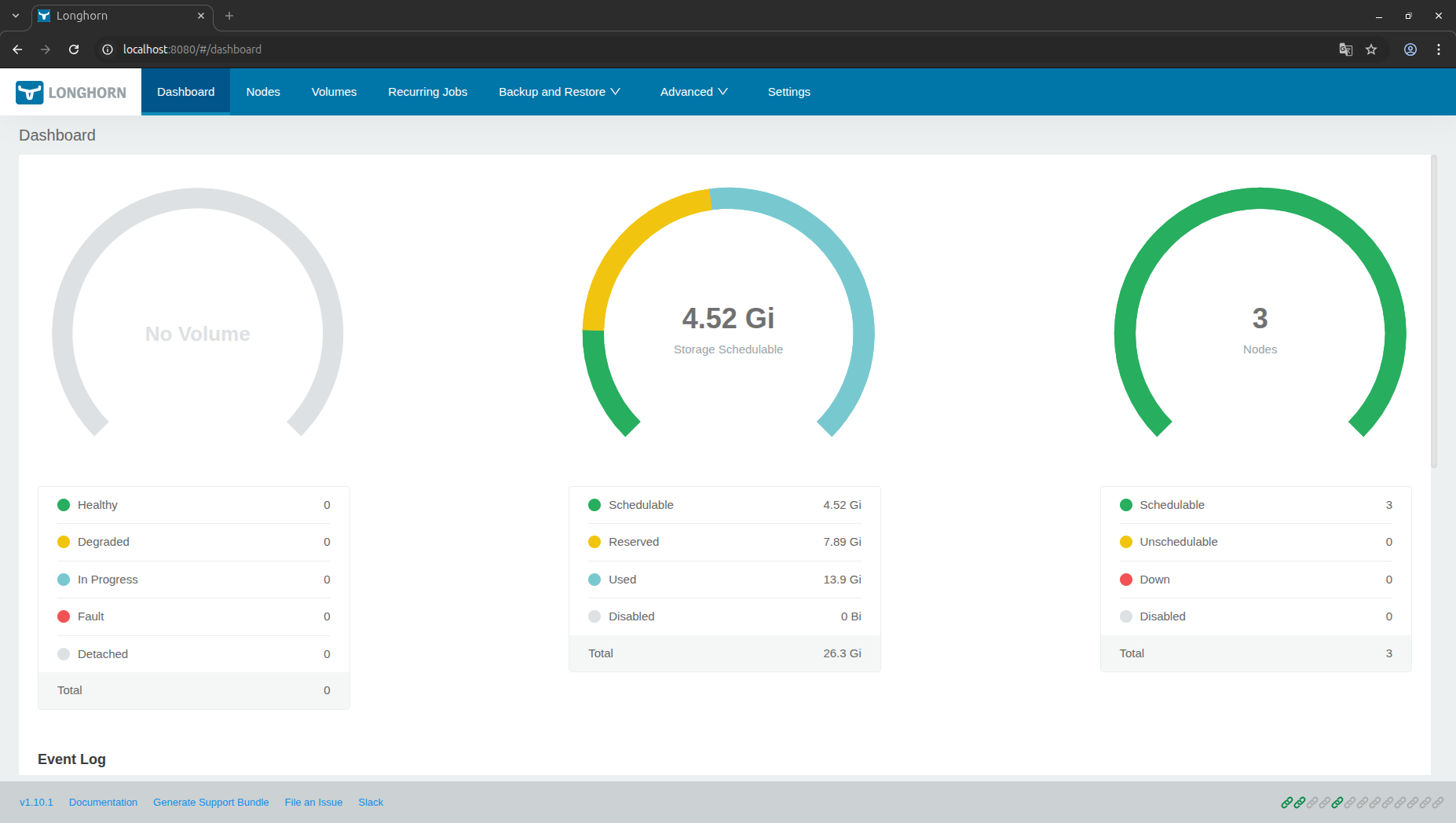
At this point we have successfully:
- deployed three Talos VMs in Proxmox
- enabled scheduling on all control plane nodes
- installed Cilium as the CNI and removed kube-proxy
- configured DNS and NTP
- installed Longhorn as the storage backend
There are many more features to explore in Talos, but this post is already quite dense and I do not want to risk melting your brain. Talos is powerful, but it requires a shift in how you troubleshoot and operate clusters. The immutability model and lack of SSH access mean you need to embrace the API driven workflow fully. Once you do, you gain a secure, consistent and reproducible Kubernetes platform that fits perfectly into modern DevOps practices.
The smaller the attack surface, the harder it is for trouble to sneak in. That alone already brings peace of mind.
I hope you enjoyed this guide and that it helps you get started with Talos.
Happy testing and may your clusters always behave nicely, even on Mondays!