

Hi there!
Today, I want to share my experience enabling Actions on my self-hosted Forgejo instance at home. My goal was to create a GitHub Actions-like environment locally so I could run CI pipelines even when offline.
As I mentioned in my second post , one of the main reasons I run a homelab is to stay independent from Big Tech as much as possible. I strongly believe in the original vision of a decentralized internet. Unfortunately, the modern web has become increasingly centralized, controlled by a handful of companies, and often locked behind subscription services. To maintain as much digital independence as possible, hosting the services you care about is key.
Now, back to the technical part. In this post, I’ll show you how to enable Forgejo Actions in a resource-constrained environment using Docker-in-Docker, without relying on virtual machines.
Caution
Before following along, always check the official Forgejo documentation to confirm these steps are still current. Software evolves quickly nowdays 😅
Preparation steps
First, create the directory structure that the runner will use. According to the Forgejo documentation, the runner container runs under a non-root user (uid=1000 gid=1000 groups=1000), so we need to create directories and apply the correct permissions.
Important
You need Docker installed and a running Forgejo instance before proceeding. If Docker isn’t installed yet, set it up first.
Warning
In the examples below, replace <your desired path>/ with the actual path where the Forgejo runner will store its data.
mkdir -p <your desired path>/forgejo-runner/data/.cache
cd  <your desired path>/forgejo-runner/
chown -R 1001:1001 data
chmod 775 data/.cache
chmod g+s data/.cacheNext, define a Docker Compose file that creates the runner container using Docker-in-Docker (DinD):
version: '3.8'

services:
  forgejo-docker-in-docker:
    image: docker:dind
    container_name: 'forgejo-docker-in-docker'
    privileged: true
    command: ['dockerd', '-H', 'tcp://0.0.0.0:2375', '--tls=false']
    restart: 'unless-stopped'

  forgejo-runner:
    image: 'data.forgejo.org/forgejo/runner:11'
    links:
      - forgejo-docker-in-docker
    depends_on:
      forgejo-docker-in-docker:
        condition: service_started
    container_name: 'forgejo-runner'
    environment:
      DOCKER_HOST: tcp://forgejo-docker-in-docker:2375
    # User without root privileges, but with access to `./data`.
    user: 1001:1001
    volumes:
      - ./<your desired path>/forgejo-runner/data/:/data
    restart: 'unless-stopped'
command: '/bin/sh -c "while : ; do sleep 1 ; done ;"'Important
This example exposes the Docker API using a privileged container. To harden your setup and minimize risk, review the Docker documentation on protecting access .
For now, the runner’s command simply keeps the container running. Start the containers with:
docker compose up -dOnce both containers are running, proceed with the following steps:
- Register the runner in Forgejo.
- Stop the Docker Compose setup to update the runner’s command.
- Restart the containers.
Register the runner
To register the runner in your Forgejo instance, open a shell inside the runner container and run:
docker exec -it forgejo-runner forgejo-runner registerFollow the registration prompts:
- Enter your Forgejo instance URL or IP and port.
- Copy the registration token from Site Administration → Actions → Runners → Create New Runner in the Forgejo web UI.
- Provide a meaningful runner name.
- Optionally, set labels.
Example:
homeserver@homeserver:~$ docker exec -it forgejo-runner forgejo-runner register
INFO Registering runner, arch=amd64, os=linux, version=v11.1.2.
WARN Runner in user-mode.
INFO Enter the Forgejo instance URL (for example, https://next.forgejo.org/):
https://git.example.com
INFO Enter the runner token:
AAAAVVVXXZZZFDGFDGFfgdfgdfhgsr5464675678
INFO Enter the runner name (if set empty, use hostname: 895af1b0c8c8):
unraid-runner
INFO Enter the runner labels, leave blank to use the default labels (comma-separated, for example, ubuntu-20.04:docker://node:20-bookworm,ubuntu-18.04:docker://node:20-bookworm):

INFO Registering runner, name=unraid-runner, instance=https://git.example.com, labels=[docker:docker://data.forgejo.org/oci/node:20-bullseye].
DEBU Successfully pinged the Forgejo instance server
INFO Runner registered successfully. Important
Depending on your Docker, Forgejo and/or network setup, DNS resolution might fail inside DinD containers. If that happens, use the container name or the Forgejo instance’s IP address and port when registering.
After registration, you should see the runner listed in the Forgejo web UI: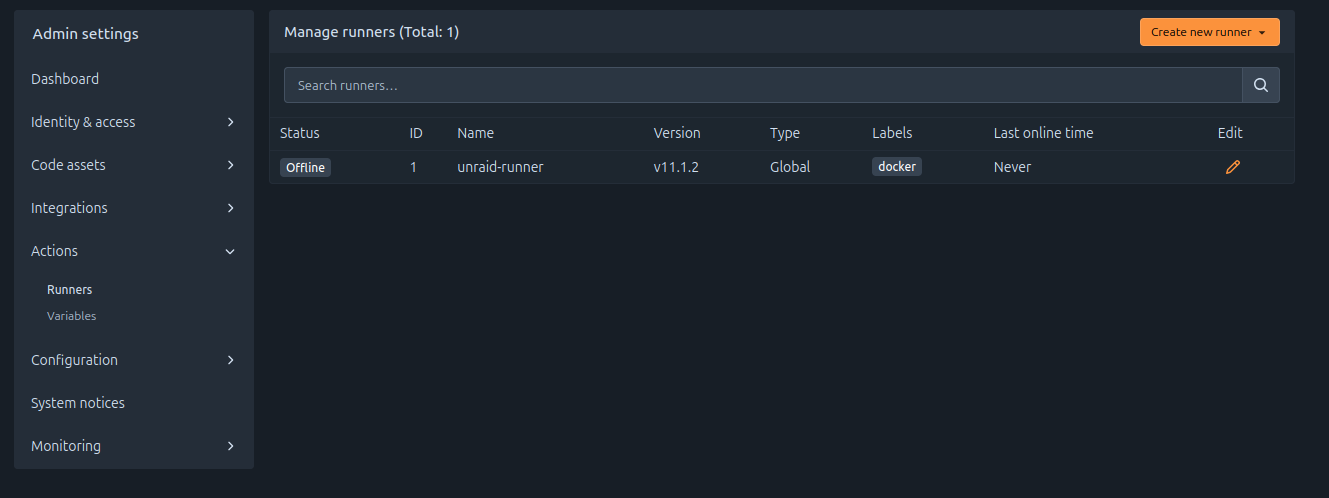
At this point, the runner is registered but still offline. Let’s bring it online.
Update the runner command in the Compose file
As mentioned earlier, we need to update the runner container’s command. Edit your Docker Compose file and replace the last line:
command: '/bin/sh -c "while : ; do sleep 1 ; done ;"'with:
command: '/bin/sh -c "sleep 5; forgejo-runner daemon"'The short delay ensures the Docker-in-Docker service is ready before the runner daemon starts. Then restart the containers:
docker compose down
docker compose up -dThe runner status should now show as Idle and appear green: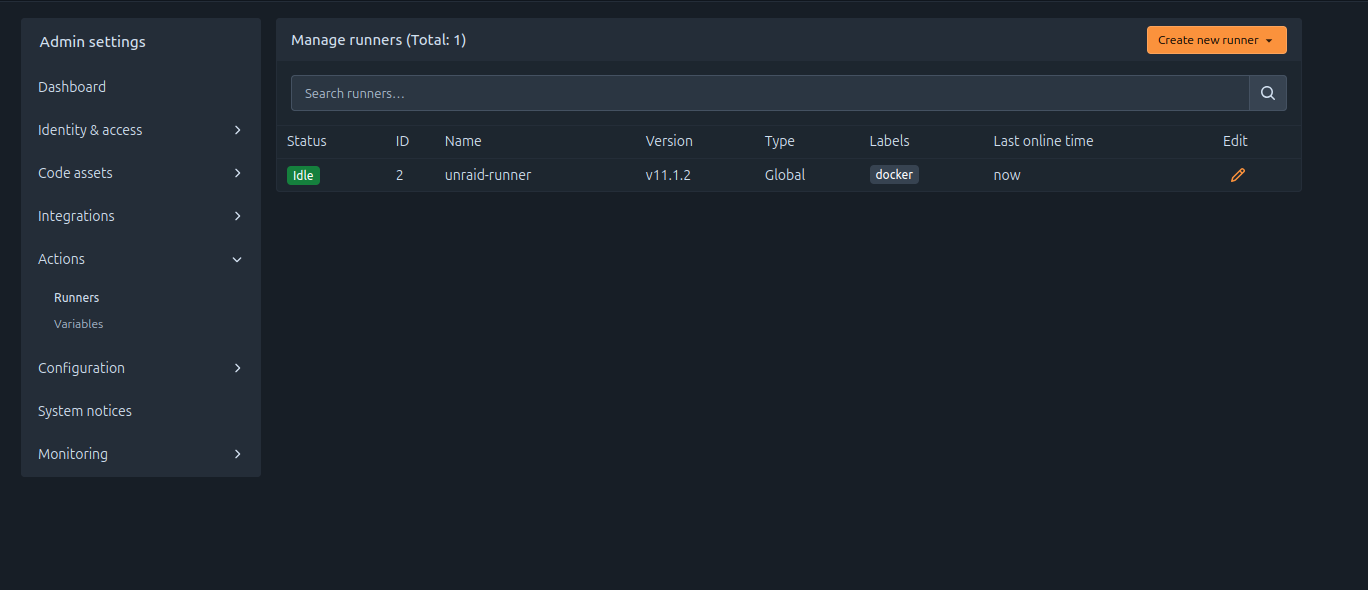
Note
If you plan to manage Forgejo runners using Infrastructure as Code tools such as Terraform or Ansible, refer to the offline registration guide in the official documentation.
Test the setup
Now let’s verify the setup with a simple workflow. In one of your repositories, create a workflows directory:
cd <my git repo>
mkdir -p .forgejo/workflows/
touch .forgejo/workflows/demo-pipeline.yamlPaste the following into .forgejo/workflows/demo-pipeline.yaml:
on: [push]
jobs:
  demo-pipeline:
    runs-on: docker # this is the label we have on the runner by default
    steps:
      - uses: https://code.forgejo.org/actions/checkout@v4
- run: echo Hello World! This is a testCommit and push the changes. You should see the Action start running in the Forgejo web UI. After a short while, it should complete successfully:
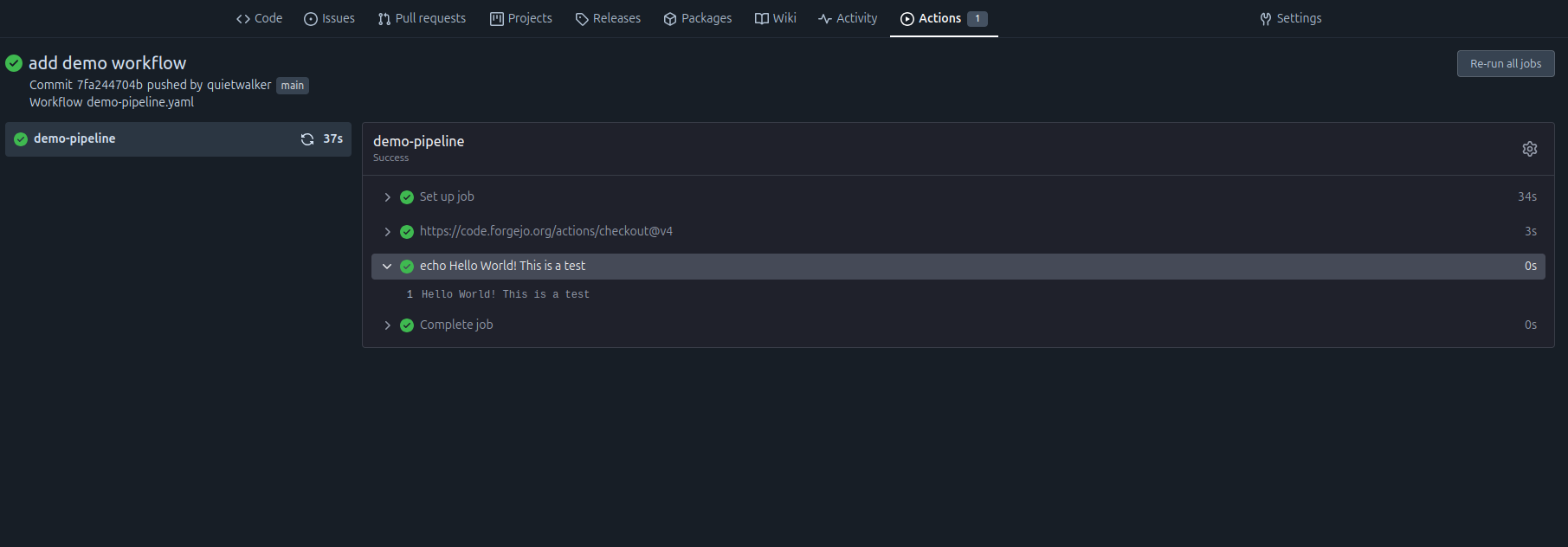
Great work!
You now have a self-hosted Forgejo instance capable of running Actions and CI/CD pipelines. From here, you could expand your setup with security scans (for example, using Trivy) or automate dependency updates with tools like Renovate (like dependabot does in GitHub), but those topics may be covered in future.
Enjoy your new self-hosted CI environment. See you!