

Over the past few years, artificial intelligence has evolved rapidly. Today, it’s common to see people using AI at work or relying on it to solve complex problems.
One of the AI applications that fascinates me most is Retrieval-Augmented Generation (RAG). As Wikipedia defines it:
Retrieval-augmented generation (RAG) is a technique that enables large language models (LLMs) to retrieve and incorporate new information.[1] With RAG, LLMs do not respond to user queries until they refer to a specified set of documents. These documents supplement information from the LLM’s pre-existing training data.[2] This allows LLMs to use domain-specific and/or updated information that is not available in the training data.
RAG can be extremely useful in real-world scenarios. For example, it can power a system that answers any question about a specific knowledge domain. With a large and well-curated dataset, a RAG system can become surprisingly capable, even when paired with a relatively small LLM.
To build a RAG, we need documents to analyze, classify, index, and convert into a form that an LLM can understand.
The fundamental components of a RAG are:
- Documents about a topic
- A vector database, which stores the processed documents in a format optimized for semantic search
- An LLM, which interprets and generates text (ideally self-hosted and able to run offline)
As mentioned in my previous post , I don’t have a dedicated GPU, so this setup is designed to run entirely on CPU.
For this project, I’ll use:
- Android APS documentation as the knowledge base (AAPS is an open-source app for insulin-dependent diabetes management)
- Milvus as the vector database
- Ollama to host the LLM
Important
To keep this post “concise”, I’ll simplify certain concepts. If you want to dive deeper into the internals, I encourage you to research further.
Vector Databases and Milvus
Before jumping into the implementation, let’s briefly cover what a vector database is, how it works, and why we need it.
A vector database is designed specifically for AI and machine learning workloads. It operates like a semantic search engine, finding relevant resources (text, images, or audio) by understanding their meaning rather than matching exact keywords.
Each resource is represented as a vector embedding, a list of numerical values that capture its semantic meaning. These vectors serve as unique “fingerprints” of data. By comparing vector similarity, the database can retrieve items that are conceptually similar to a query.
Since a vector database cannot interpret natural language or images directly, we must first convert our data into embeddings. These embeddings are then stored and indexed in Milvus for fast similarity searches.
| Data type | Example | Embedding |
|---|---|---|
| Text | “Dog” | [0.12, -0.34, ..., 0.89] |
| Picture | JPEG/PNG | [0.01, 0.93, ..., 0.74] |
| Audio | WAV/MP3 | [0.45, -0.23, ..., 0.67] |
To generate embeddings, data is split into smaller chunks, and an embedding model (a specialized LLM) encodes each chunk into a vector. These vectors are stored in the database for retrieval based on semantic similarity.
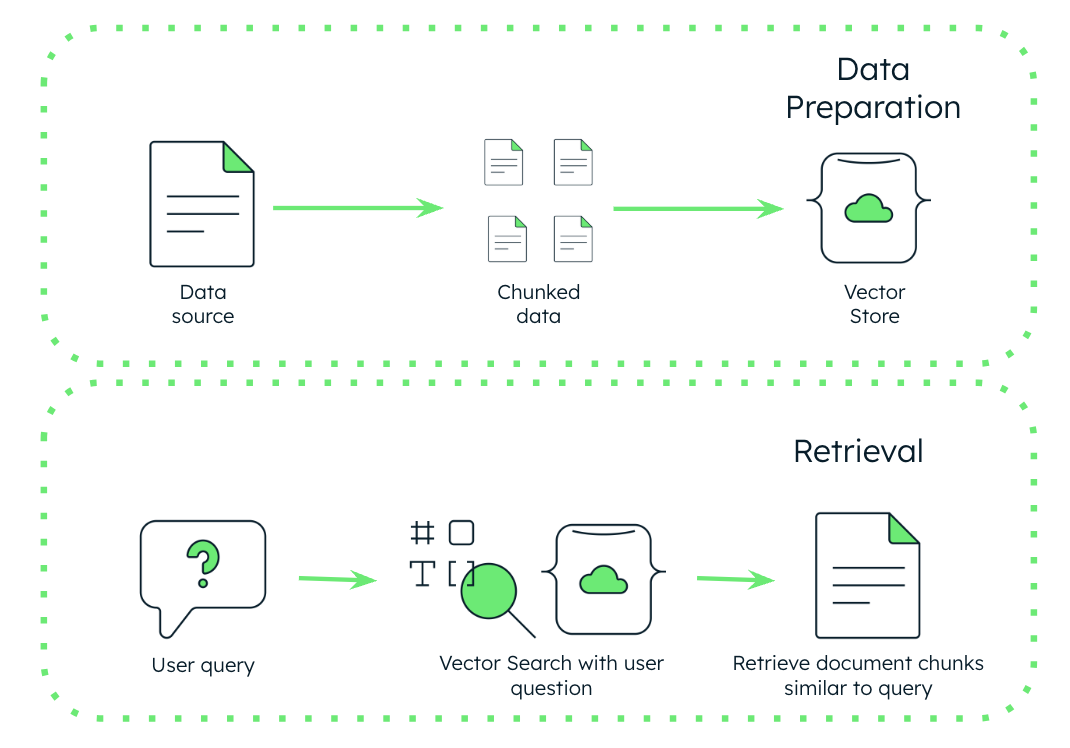
Milvus supports multiple vector types, but in this tutorial, we’ll use dense vectors: numerical representations with multiple dimensions where each dimension encodes semantic relationships. Dense vectors are stored as floating-point numbers, and their values are rarely zero.
Key Concepts in Milvus
Collection
A Collection in Milvus is similar to a table in a relational database. It holds all the embeddings and associated metadata such as IDs or labels.
Each collection has:
- A unique name
- A schema defining fields such as:
vector(the embedding, with dimensions and type)text(string)subject(string)
Example: A collection named news_articles could store embeddings of article text, along with titles and publication dates.
Data
Data in Milvus refers to individual records inserted into the database. Each record contains:
- The vector embedding
- The resource ID
- Additional metadata fields such as text or labels
Example:
{
	"id": 2,
	"vector": array([ 1.92813469e-02,  ..... , -1.79081468e-02],
	"text": "Debian is an operating system and a distribution of Free Software.",
	"subject": "Linux"
}Index
An index speeds up vector similarity searches. Milvus builds indexes using different similarity metrics to identify related vectors efficiently.
For more information, check the Milvus metrics documentation .
Building the Project
Important
The examples below are based on Linux. Some commands may differ slightly if you’re using macOS.
Download and Prepare the Dataset
Let’s start by downloading the AAPS documentation, which we’ll use as our dataset.
mkdir -p rag/aaps-doc-repo
git clone https://github.com/openaps/AndroidAPSdocs.git rag/aaps-doc-repoWe’ll only focus on the English documentation, which is quite small:
test@test:~/rag/aaps-doc-repo/docs$ du -hs *
32K	androidaps.jpg
252K	androidaps-logo.png
4.2G	CROWDIN
78M	EN # <============ WE JUST NEED TO FOCUS ON THIS DIRECTORY
16K	favicon.ico
16K	shared.conf.py
2.7M	_static
8.0K _templatesSet Up Ollama
Ollama provides an easy way to run large language models locally.
To install it on Linux:
curl -fsSL https://ollama.com/install.sh | shOr, if you prefer Docker:
docker run -d -v ollama:/root/.ollama -p 11434:11434 --name ollama ollama/ollamaSee Ollama’s Docker documentation for details.
Download the Models
We’ll use two models:
- One for generating embeddings
- One for generating answers using our stored data
At this point, just execute this two commands:
ollama pull phi4-mini:latest
ollama pull mxbai-embed-largeThe reasons behind these choices will become clear later.
Generating Embeddings
To simplify setup, we’ll use Milvus Lite, which stores data in a local file instead of running a full database container.
Since this project targets CPU-only environments, I chose the mxbai-embed-large model for embedding generation. It’s efficient enough to run on a system such as my old Intel i7 8th Gen laptop.
As reported in Ollama library page:
As of March 2024, this model archives SOTA performance for Bert-large sized models on the MTEB. It outperforms commercial models like OpenAIs text-embedding-3-large model and matches the performance of model 20x its size.
Ok, now let’s start having fun!
Create a new file named rag/gen_embeddings.py with the following content:
from langchain_milvus import Milvus
from langchain_text_splitters import MarkdownHeaderTextSplitter
from langchain_community.document_loaders import TextLoader
from langchain_text_splitters import RecursiveCharacterTextSplitter
from langchain_ollama import OllamaEmbeddings
from langchain_core.documents import Document
from glob import glob
import re

# Vars definitions
collection_name = "aaps_docs_rag"
chunks = [] # will store all dataset chunks
milvus_data = [] # will store data to be inserted into Milvus
chunk_size = 800
chunk_overlap = 100

## Define Langchain Mardown splitter
headers_to_split_on = [
    ("#", "Header 1"),
    ("##", "Header 2"),
    ("###", "Header 3"),
    ("####", "Header 4"),
]

# Initialize Ollama embedding model
embeddings = OllamaEmbeddings(
    model="mxbai-embed-large",
)

# Initialize Milvus DB and create a collection
vector_store = Milvus(
    collection_name=collection_name,
    embedding_function=embeddings,
    connection_args={"uri": "./rag_demo.db"},
    index_params={"index_type": "IVF_FLAT", "metric_type": "COSINE"},
    auto_id=True,  # Enable automatic ID generation
    drop_old=True,  # Drop existing collection if it exists. Use this for test only
)

# Define text splitters
markdown_header_splitter = MarkdownHeaderTextSplitter(
    headers_to_split_on=headers_to_split_on, strip_headers=False
)

text_splitter = RecursiveCharacterTextSplitter(
    chunk_size=chunk_size,
    chunk_overlap=chunk_overlap,
    separators=[
        "\n### ", "\n## ", "\n# ",
        "\n- ", "\n* ", "\n\n",
        ". ", " ", ""
    ]
)

# Define function to clean up AAPS docs
def clean_markdown(text: str) -> str:
    # Remove Sphinx/Myst anchors like (anchor-name)=
    text = re.sub(r'^\([^)]+\)=\s*$', '', text, flags=re.MULTILINE)
    # Remove images
    text = re.sub(r'!\[.*?\]\(.*?\)', '', text)
    # Consolidate and improve code block removal (matches 3+ backticks)
    text = re.sub(r'`{3,}[\s\S]*?`{3,}', '[CODE BLOCK REMOVED]', text, flags=re.DOTALL)
    # Remove HTML tags
    text = re.sub(r'<[^>]+>', '', text)
    # Normalize multiple newlines
    text = re.sub(r'\n{2,}', '\n', text)
    return text.strip()


# Add chunks to the list which will be used to collect all vectors to stores in Milvus
def add_chunks(sub_chunks, metadata):
    for chunk in sub_chunks:
        if len(metadata.items()) > 1:
            items = list(metadata.items())
            chunk_metadata = {
                "section": items[0][1],
                "sub_section": items[1][1],
                "source_file": file_path
            }
        elif len(metadata.items()) == 1:
            key, value = list(metadata.items())[0]
            chunk_metadata = {
                "section": value,
                "sub_section": "",
                "source_file": file_path
            }
        else:
            chunk_metadata = {
                "section": "",
                "sub_section": "",
                "source_file": file_path
            }

        chunks.append(Document(
            page_content=chunk,
            metadata=chunk_metadata
        ))


# Collect and chunk Markdown files
for file_path in glob("aaps-doc-repo/docs/EN/**/*.md", recursive=True):
    print(f"Processing file: {file_path}")
    loader = TextLoader(file_path, encoding="utf-8")
    documents = loader.load()
    # Extract markdown text content and remove unwanted parts
    md_doc = clean_markdown(documents[0].page_content)
    # Split respecting markdown hierarchy
    md_header_splits = markdown_header_splitter.split_text(md_doc)
    for header_chunk in md_header_splits:
        # Further split each header chunk into smaller chunks, for long sentences
        if len(header_chunk.page_content) > chunk_size:
            sub_chunks = text_splitter.split_text(header_chunk.page_content)
            add_chunks(sub_chunks, header_chunk.metadata)
        else:
            add_chunks([header_chunk.page_content], header_chunk.metadata)


print(f"Total chunks created: {len(chunks)}")

# Store each document chunk in the DB, after generating embedding
print("Inserting documents into Milvus collection...")
batch_size = 500
for i in range(0, len(chunks), batch_size):
    batch = chunks[i:i + batch_size]
    vector_store.add_documents(documents=batch)
embedding = vector_store.add_documents(documents=chunks)

# Print Finished message
print(f"Inserted {len(chunks)} documents into Milvus collection '{collection_name}'")This script splits Markdown files into smaller text chunks, cleans them, generates embeddings, and stores them in Milvus. To improve efficiency and prevent out-of-memory errors, it removes code blocks from files - they are unnecessary for this guide - and processes embeddings in batches.
Once the file is ready, set up a virtual environment and install dependencies:
cd rag/
python3 -m venv .venv
source .venv/bin/activate
pip3 install langchain langchain-milvus langchain-text-splitters langchain-ollama langchain-core langchain-community pymilvus[milvus-lite]
python3 gen_embeddings.pyYou’ll see an output similar to:
(.venv) test@test:~/rag$ python3 gen_embeddings.py
Processing file: aaps-doc-repo/docs/EN/index.md
[truncated for readability]
Total chunks created: 2343
Inserting documents into Milvus collection...
Inserted 2343 documents into Milvus collection 'aaps_docs_rag'Next, create a second script, we can name it milvus_read.py, to query Milvus and retrieve relevant documents:
from langchain_ollama import ChatOllama, OllamaEmbeddings
from langchain_milvus import Milvus

# Load local Ollama model
llm = ChatOllama(
    model="phi4-mini:latest",
    temperature=0.2,
)

# Connect to existing Milvus Lite DB
vectorstore = Milvus(
    collection_name="aaps_docs_rag",
    connection_args={"uri": "./rag_demo.db"},
    embedding_function=OllamaEmbeddings(model="mxbai-embed-large"),
)

# Create a data retriever
retriever = vectorstore.as_retriever(
    search_type="similarity", # using similarity search
    search_kwargs={
        "k": 5, # number of documents to return
    }
)

question = "How can I restore my AAPS settings backup on a new phone?"

search_res = retriever.invoke(question)

# Display the retrieved documents
for i, doc in enumerate(search_res):
    print(f"Document {i+1}:")
    print(f"Content: {doc.page_content}")
    print(f"Metadata: {doc.metadata}")
print("-" * 50)Run it and you should see something like:
$ python3 milvus_read.py
Document 1:
Content: ### Reinstalling AAPS
When uninstalling **AAPS** you will lose all your settings, objectives and the current Pod session. **To restore them make sure you have a recent exported settings file available!**
When on an active Pod, make sure that you have an export for the current pod session or you will lose the currently active pod when importing older settings.
1. Export your settings and store a copy in a safe place (e.g Google Drive).
2. Uninstall **AAPS** and restart your phone.
3. Install the new version of **AAPS**.
4. Import your settings.
5. Verify all preferences (optionally import settings again).
6. Activate a new pod.
7. When done: Export current settings.
---
Metadata: {'pk': 462052157073658950, 'section': 'Omnipod DASH', 'source_file': 'aaps-doc-repo/docs/EN/CompatiblePumps/OmnipodDASH.md', 'sub_section': 'Troubleshooting'}
--------------------------------------------------
Document 2:
Content: ### Reinstalling AAPS
When uninstalling **AAPS** you will lose all your settings, objectives and the current Pod session. **To restore them make sure you have a recent exported settings file available!**
When on an active Pod, make sure that you have an export for the current pod session or you will lose the currently active pod when importing older settings.
1. Export your settings and store a copy in a safe place (e.g Google Drive).
2. Uninstall **AAPS** and restart your phone.
3. Install the new version of **AAPS**.
4. Import your settings.
5. Verify all preferences (optionally import settings again).
6. Activate a new pod.
7. When done: Export current settings.
---
Metadata: {'pk': 462051399138804716, 'section': 'Omnipod DASH', 'source_file': 'aaps-doc-repo/docs/EN/CompatiblePumps/OmnipodDASH.md', 'sub_section': 'Troubleshooting'}
--------------------------------------------------
Document 3:
Content: # Creating and restoring back-ups
When installing AAPS on your phone it becomes a "medical device" you rely on daily. It is highly recommended to have an
emergency backup plan for when your phone gets defective, stolen or lost. Therefore, it is essential to prepare by asking yourself, "What if?
To restore your AAPS setup to an existing or new phone, it's important to keep following items in a secure location (read: not on your phone).
Best practice is to keep at least two separate backups: on a local hard drive, USB stick and (preferred) on Cloud storage like Google Drive or
Microsoft 365 OneDrive
Metadata: {'pk': 462052157073659440, 'section': 'Creating and restoring back-ups', 'source_file': 'aaps-doc-repo/docs/EN/Maintenance/ExportImportSettings.md', 'sub_section': ''}
--------------------------------------------------
Document 4:
Content: # Creating and restoring back-ups
When installing AAPS on your phone it becomes a "medical device" you rely on daily. It is highly recommended to have an
emergency backup plan for when your phone gets defective, stolen or lost. Therefore, it is essential to prepare by asking yourself, "What if?
To restore your AAPS setup to an existing or new phone, it's important to keep following items in a secure location (read: not on your phone).
Best practice is to keep at least two separate backups: on a local hard drive, USB stick and (preferred) on Cloud storage like Google Drive or
Microsoft 365 OneDrive
Metadata: {'pk': 462051399138805206, 'section': 'Creating and restoring back-ups', 'source_file': 'aaps-doc-repo/docs/EN/Maintenance/ExportImportSettings.md', 'sub_section': ''}
--------------------------------------------------
Document 5:
Content: ## Export settings
- AAPS 2.7 uses a new encrypted backup format.
- You must [export your settings](ExportImportSettings.md) after updating to version 2.7.
- Settings files from previous versions can only be imported in AAPS 2.7. Export will be in new format.
- Make sure to store your exported settings not only on your phone but also in at least one safe place (your pc, cloud storage...).
- If you build AAPS 2.7 apk with the same keystore than in previous versions you can install new version without deleting the previous version.
- All settings as well as finished objectives will remain as they were in the previous version.
Metadata: {'pk': 462052157073659412, 'section': 'Necessary checks after update coming from AAPS 2.6', 'source_file': 'aaps-doc-repo/docs/EN/Maintenance/Update2_7.md', 'sub_section': 'Export settings'}
--------------------------------------------------As shown, the system retrieves relevant document chunks from Milvus based on semantic similarity.
Note
Attentive readers may notice that the same document appears twice in the output. This is likely due to how the text chunks were generated, although I haven’t investigated it further. Let’s move on, as this behavior isn’t the main focus of this post.
Finalizing the RAG
Now, let’s integrate everything into a functional RAG pipeline. When a user submits a query, Milvus retrieves the most relevant document chunks, and the LLM (running via Ollama) uses them as context to generate an informed answer.
Since we want this setup to run offline and on CPU-only hardware, I’m using phi4-mini, a compact yet capable model. I’ve also tested alternatives like llama3.2:3b, though performance and response quality may vary from model to model.
Create the file RAG.py:
from langchain_ollama import ChatOllama, OllamaEmbeddings
from langchain_milvus import Milvus
import time
from langchain_core.runnables import RunnablePassthrough, RunnableLambda
from langchain_core.output_parsers import StrOutputParser
from langchain_core.prompts import ChatPromptTemplate

# Load local Ollama model
llm = ChatOllama(
    model="phi4-mini:latest",
    temperature=0.2,
)

# Connect to existing Milvus Lite DB
vectorstore = Milvus(
    collection_name="aaps_docs_rag",
    connection_args={"uri": "./rag_demo.db"},
    embedding_function=OllamaEmbeddings(model="mxbai-embed-large"),
)

# Create a data retriever
retriever = vectorstore.as_retriever(
    search_type="similarity", # using cosine similarity
    search_kwargs={
        "k": 7  # <-- Get the Top 7 most similar docs
    }
)

# Define the prompt for our RAG
RAG_PROMPT_TEMPLATE = ChatPromptTemplate.from_template("""
You are a helpful assistant specialized in Android APS (a.k.a. AAPS) documentation.
Use ONLY the following retrieved context to answer the user's question.
If the context does not contain the answer, state that you don't have enough information.
Cite the source file for your answer using (Source: <filename>).

Context:
{context}

Question:
{question}
""")

def format_docs(docs):
    """Prepares the retrieved documents for the LLM."""
    return "\n\n".join(
        (f"Source: {doc.metadata.get('source_file', 'Unknown')}\nContent: {doc.page_content}")
        for doc in docs
    )

# Create a RAG chain using LangChain Expression Language (LCEL)
rag_chain = (
    {"context": retriever
    | RunnableLambda(format_docs), "question": RunnablePassthrough()}
    | RAG_PROMPT_TEMPLATE
    | llm
    | StrOutputParser()
)

# Run the chain with the query and stream the output
query = "How can I restore my AAPS settings backup on a new phone?"

print(f"Query: {query}\n")
print("Streaming answer:\n")

start_time = time.time()
full_response = ""
for chunk in rag_chain.stream(query):
    print(chunk, end="", flush=True)
    full_response += chunk

end_time = time.time()
print(f"\n\n--- Replied in {end_time - start_time:.2f} seconds ---")This script uses LangChain Expression Language (LCEL) to streamline data retrieval and generation, as you can see looking at rag_chain in the code above.
Run it with:
python3 RAG.pyExpected output:
test@test:~/rag$ python3 RAG.py
Query: How can I restore my AAPS settings backup on a new phone?

Streaming answer:

To restore your AAPS settings backup on a new phone, follow these instructions:

1. Install Android APK Manager and the latest version of AAPS.
2. Import all exported files from Google Drive or Microsoft 365 OneDrive (or any other cloud storage you used) to your computer using an app like MobaHoaxer for Windows PCs.

Source: aaps-doc-repo/docs/EN/Maintenance/ExportImportSettings.md

--- Replied in 76.67 seconds ---Great! The query is processed, relevant context is retrieved from Milvus, and the LLM provides a coherent answer using that context.
Let’s create a GUI
Do we really want to use a CLI to chat with how documents? I don’t think so…
S to make this project feel complete, we need a graphical interface. A simple web based UI, similar to what you might expect from chatGPT, allows you to ask questions and keep a history of the conversation. This turns the RAG system from a command line tool into something more practical and user friendly.
To build the interface, we will use Gradio , which provides one of the fastest and easiest ways to create a web UI for machine learning and LLM based applications.
Start by editing the RAG.py file and update it to look like this:
from langchain_ollama import ChatOllama, OllamaEmbeddings
from langchain_milvus import Milvus
from langchain_core.runnables import RunnableLambda
from langchain_core.output_parsers import StrOutputParser
from langchain_core.prompts import ChatPromptTemplate
import gradio as gr

# Load local Ollama model
llm = ChatOllama(
    model="phi4-mini:latest",
    temperature=0.2,
)

# Connect to existing Milvus Lite DB
vectorstore = Milvus(
    collection_name="aaps_docs_rag",
    connection_args={"uri": "./rag_demo.db"},
    embedding_function=OllamaEmbeddings(model="mxbai-embed-large"),
)

# Create a data retriever
retriever = vectorstore.as_retriever(
    search_type="similarity", # using cosine similarity
    search_kwargs={
        "k": 7  # <-- Get the Top 7 most similar docs
    }
)

# Define the prompt for our RAG
RAG_PROMPT_TEMPLATE = ChatPromptTemplate.from_template("""
You are a helpful assistant specialized in Android APS (a.k.a. AAPS) documentation.
Use the following retrieved context to answer the user's question.
If the context does not contain the answer, state that you don't have enough information.
Cite the source file for your answer using (Source: <filename>).

Here is the conversation history:
{chat_history}

Context:
{context}

Question:
{question}
""")

def format_docs(docs):
    """Prepares the retrieved documents for the LLM."""
    return "\n\n".join(
        (f"Source: {doc.metadata.get('source_file', 'Unknown')}\nContent: {doc.page_content}")
        for doc in docs
    )

def format_history(history):
    if not history:
        return "No previous conversation."

    formatted = []
    for user_msg, bot_msg in history:
        formatted.append(f"User: {user_msg}")
        formatted.append(f"Assistant: {bot_msg}")
    return "\n".join(formatted)

# Create a RAG chain using LangChain Expression Language (LCEL)
rag_chain = (
    {
        "context": RunnableLambda(lambda inputs: inputs["question"]) | retriever | RunnableLambda(format_docs),
        "question": RunnableLambda(lambda inputs: inputs["question"]),
        "chat_history": RunnableLambda(lambda inputs: inputs["chat_history"])
    }
    | RAG_PROMPT_TEMPLATE
    | llm
    | StrOutputParser()
)

# function called by Gradio interface
def get_rag_response(message, history):

    #print(f"User query: {message}")

    # Format the history to pass it to the LLM
    formatted_chat_history = format_history(history)

    # We now pass a dictionary to the chain
    inputs = {
        "question": message,
        "chat_history": formatted_chat_history
    }

    # Use .stream() to get a streaming response
    response_stream = rag_chain.stream(inputs)
    #if len(inputs["chat_history"]) > 0:
    #    print(f"Chat history: {inputs['chat_history']}")

    full_response = ""
    # Yield each chunk as it comes in, accumulating the full response
    for chunk in response_stream:
        full_response += chunk
        yield full_response

gui_iface = gr.ChatInterface(
    fn=get_rag_response,
    title="Android APS (AAPS) RAG Chatbot",
    description="Ask questions about AAPS documentation. The assistant will answer using retrieved information.",
)

gui_iface.launch()To run the interface, execute the following commands:
pip3 install gradio
python3 RAG.pyThe script will display a local URL, something like Running on local URL: http://127.0.0.1:7860. Open this address in your browser and you will have a fully functional web interface that allows you to chat with your documents, complete with conversation history.
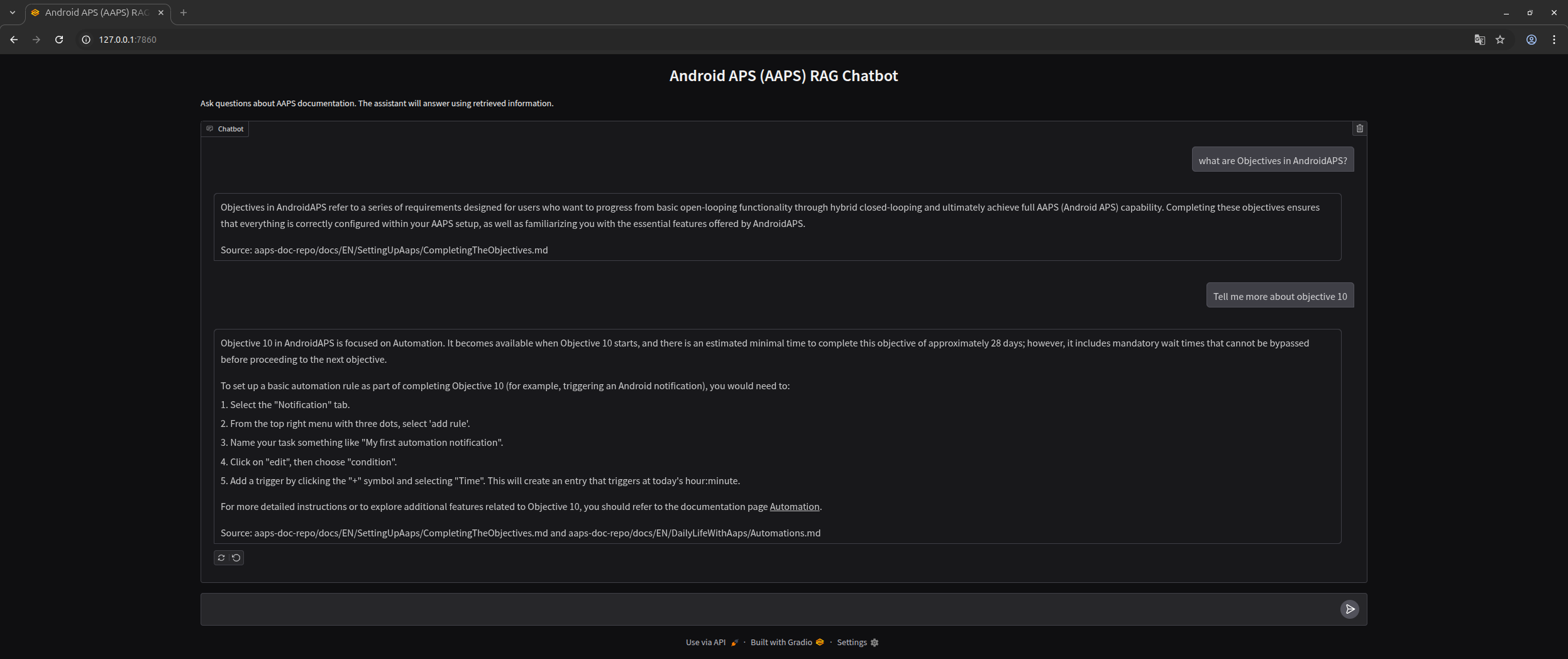
This is a simple addition, but it makes the system far more practical and enjoyable to use.
If you’ve read this far, first of all, congratulations on your courage 😂
Today we successfully built a fully functional Retrieval-Augmented Generation system using Milvus Lite, Ollama, LangChain and Gradio, using free, open source and self-hostable softwares.
This setup shows how you can combine local models with a vector database to build an intelligent system that provides context aware responses using your own data, entirely offline and without the need for a dedicated GPU.
There are many opportunities to extend and improve the project, such as:
- Chunking and retrieval logic could be fine-tuned
- Adding support to multiple document format (like PDF, DOC, PPTX etc…)
- Improve the System Prompt to get better replies
Still, this project offers a complete foundation for understanding and experimenting with RAG architectures on modest hardware.
I hope you found this tutorial helpful and that it inspires you to build your own RAG system.
Have fun and happy hacking!